
This product is deprecated and not maintained anymore.
Package content

Content details:
| File name | Description |
|---|---|
| discngine.connector.knime.sbdf.update-X.Y.Z.zip | The KNIME update site to be deployed on KNIME server and KNIME desktop where X.Y.Z is the version of the Connector |
| discngine.connector.knime.sbdf-X.Y.Z.jar | The jar file containing the nodes. You can use as a drop-in extension for KNIME Desktop |
| Discngine.DataFunction.Knime.Analyst.spk | The Discngine KNIME Data Functions for Spotfire add-in spk for Spotfire Analyst |
| Discngine.DataFunction.Knime.WebPlayer.spk | The Discngine KNIME Data Functions for Spotfire add-in spk for Spotfire Web Player |
| Discngine.Knime.Connector.sdn | The KNIME Connector Spotfire distribution that contains both SPK for usage in Analyst and Web Player |
Prerequisites
Spotfire 10.3+ (including 11+)
User must be able to save items in Spotfire library:
- Needs Browse + Access + Modify rights in the related library folders:

- Needs following Spotfire licenses:

KNIME version 4.4+.
Mandatory KNIME plugins:
- KNIME Base Chemistry Types & Nodes
Recommended KNIME plugins:
- Vernalis KNIME Nodes
- RDKit Nodes
Installation on KNIME client and server
1 - Install the Discngine KNIME Custom Nodes on your KNIME Server
Upload the zip file to your KNIME Server and execute the following command:
sudo -u <your knime username> <full path to knime executable>/knime -application org.eclipse.equinox.p2.director -nosplash -consolelog -r 'jar:file:<full path to the uploaded update site file>/discngine.connector.knime.sbdf.update-<X.Y.Z>.zip!' -i discngine.connector.knime.sbdf
Here is the result of the installation:

2 - Install the KNIME Custom Nodes on your KNIME Desktop client
Click on Help > Install New Software:

In the next window, follow instruction in the screen capture below:

Select the Knime SBDF I/O feature to be installed and click on "Next":

In the next screen, you will see a summary of the collections which will be installed. Check that you have Knime SBDF I/O will be installed and click on "Next":
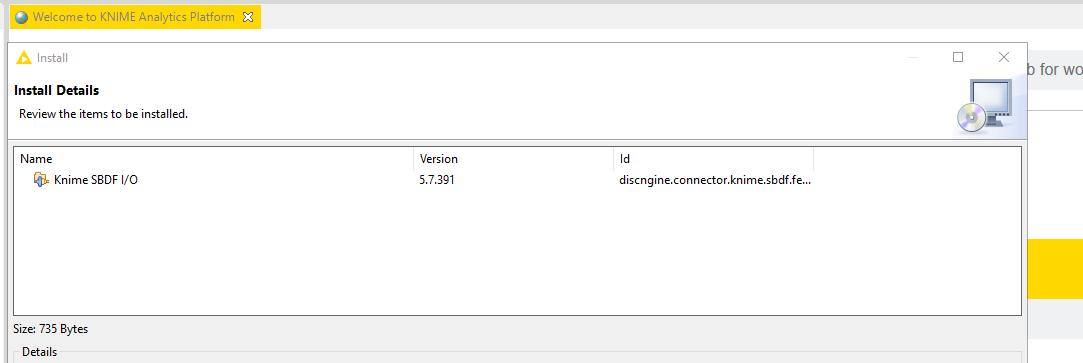
In the next screen, accept the license agreements.
You may encoutered a security warning when installing the Knime SBDF I/O feature on your desktop as the current plugin is not currently signed. You can proceed and click on "Install Anyway".
This signing issues will be solved in a future release.
Restart KNIME Desktop.

You will now have new available Nodes to use for Discngine KNIME Data Functions.
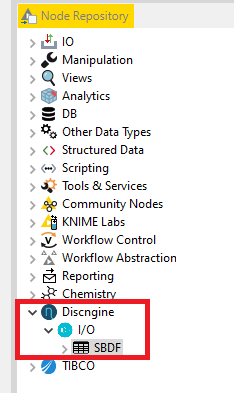
Installation on Spotfire
1 - Deploy the .sdn file to your area using the Spotfire administration tool
At the end you must have these extensions activated:

Note: Do not forget to update the corresponding Web Player to be able to use the KNIME Data Functions from the Web Player interface.
2 - Set Discngine KNIME Data Functions preferences
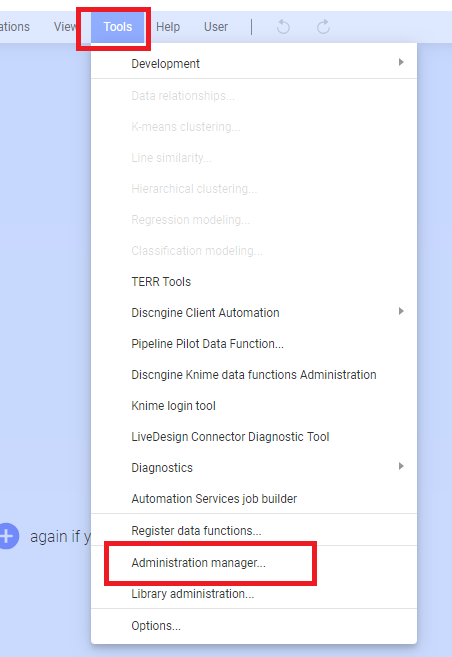
Launch Spotfire analyst with an administration authorized account and go to Tools > Administration Manager:
Go to Preferences tab and select the group that you want to authorized for KNIME Data Functions.
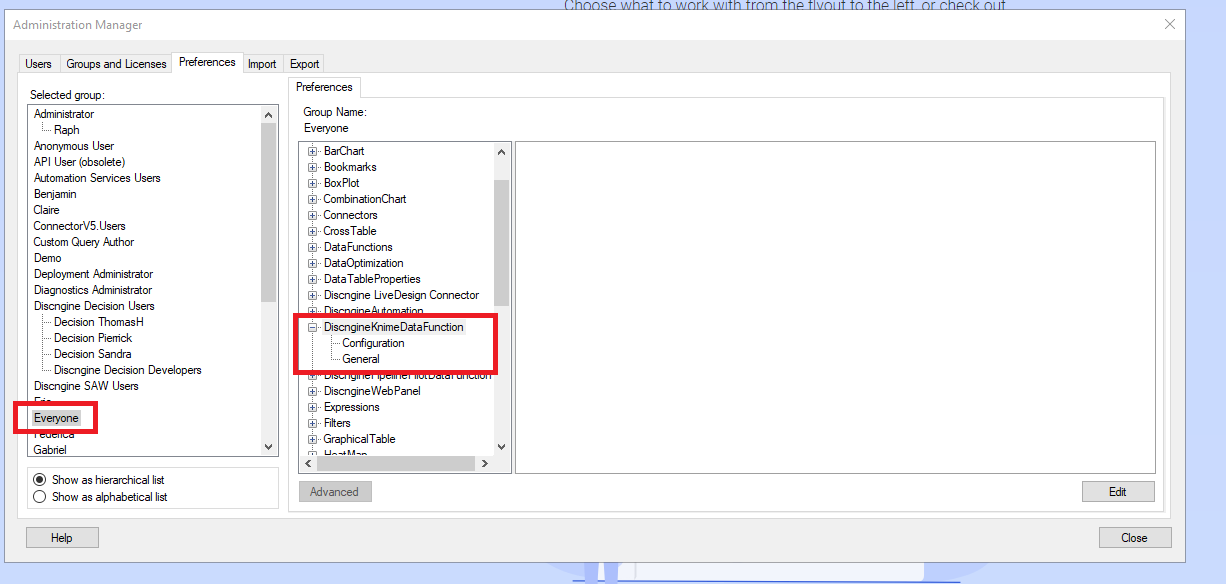
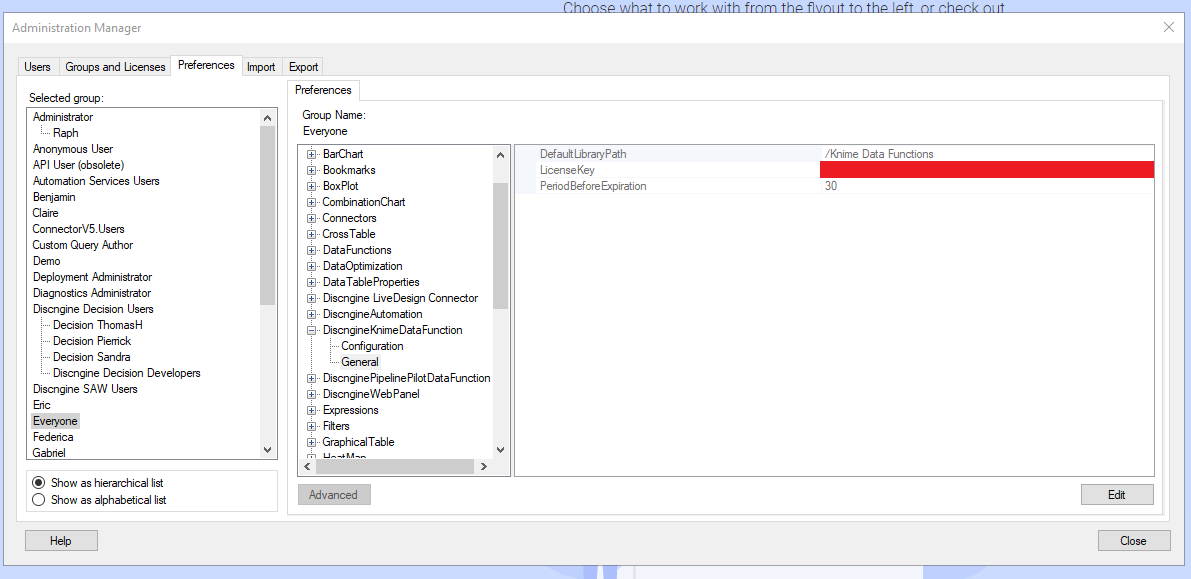
In the DiscngineKnimeDataFunction > General preferences node:
- Fill the DefaultLibraryPath to the root Spotfire library path where the registered data functions will be stored by default
- Fill the LicenseKey with the license provided by Discngine
- You may fill the warning period expiration (in days) if you want to be warn that the current license will expire in X days before expiration
In the DiscngineKnimeDataFunction > Configuration preferences node:
- Fill the knime server url (ending with
/knime):

You can now use the Discngine KNIME Data Functions Spotfire addin. See the user guide for more more details.