---
title: "Create an example app with Node"
slug: "connector-spo-pp-webpanel-tutorials-demo-app"
updated: 2026-09-25T16:29:22Z
published: 2026-09-25T16:29:22Z
canonical: "docs.discngine.com/connector-spo-pp-webpanel-tutorials-demo-app"
stale: true
---
> ## Documentation Index
> Fetch the complete documentation index at: https://docs.discngine.com/llms.txt
> Use this file to discover all available pages before exploring further.
# Create an example app with Node
In this tutorial, we will create a simple mashup application to illustrate how to use the **Discngine Connector Client Automation API**. The application will be served by a minimal Node.js server.
## Installing dependencies
Before starting, make sure you have [Node.js](https://nodejs.org/en/) and npm installed. The following example was built using node v10.16.0 and npm 6.14.5.
You will also need to have the Discngine Connector packages installed on your Spotfire server. Make sure your account is in a group that has access to the Discngine Connector packages, and that you load the correct deployment area.
The full example app is available from [our Github repository](https://github.com/Discngine/client_automation_example).
## Writing the app
First let's create a new folder for our application.
```
$ mkdir client_automation_example && cd client_automation_example
```
In this directory, create an `index.js` file which will contain our basic server. Create an `api` folder and place the Discngine Connector JavaScript API file in it. Finally, create an `app.js` file and an `index.html` file for our home page in the `public` folder, which will contain the front-end app.
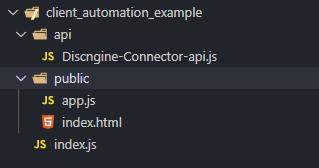
Now let's start writing the code.
### Node.js server
Our server will only serve three routes:
- `/` which will be the application root
- `/api/Discngine-Connector-js-api.js` which will load the Discngine Connector JavaScript API
- `/public/app.js` which will load the application main file
All other routes will return a 404 error.
```
// index.js
var http = require('http');
var fs = require('fs');
var path = require('path');
var PORT = 3002;
var server = http.createServer((req, res) => {
if (req.url === '/') {
return fs.readFile(path.resolve(`${__dirname}/index.html`), (err, data) => {
if (err) {
res.writeHead(404);
res.end(JSON.stringify(err));
return;
}
res.setHeader('Content-Type', 'text/html');
res.writeHead(200);
res.end(data);
});
}
if (req.url === '/api/Discngine-Connector-js-api.js' || req.url === '/public/app.js') {
return fs.readFile(
path.resolve(`${__dirname}${req.url}`),
function(err, data) {
if (err) {
res.writeHead(404);
res.end(JSON.stringify(err));
return;
}
res.setHeader('Content-Type', 'application/javascript');
res.writeHead(200);
res.end(data);
}
);
}
res.writeHead(404);
res.end('Path not found');
});
server.listen(PORT, () => {
console.log(`-- ${new Date().toISOString()}`);
console.log(`-- server running at http://localhost:${PORT}`);
});
```
### Front-end app
#### HTML file
The HTML file will first import the JavaScript API with a simple script tag `<script src="api/Discngine-Connector-js-api.js"></script>`, matching the route defined earlier on the server. It will also load our app script. In our example it will be simple, but you could use any fancy framework instead, like [React](https://reactjs.org), [Svelte](https://svelte.dev/), [Angular](https://angular.io/) or [Vue](https://vuejs.org/);
```
// index.html
Example Discngine Connector Application
```
In the body, we simply put two `<div>` sections: one will contain our app while the other will be the target to instantiate Spotfire Web Player context. The latter will be hidden in Analyst since Spotfire context will be available in the environment.
```
// index.html
Example Discngine Connector Application
Welcome to the Discngine Connector Example app.
```
In the "app" div, we will insert the logic for our basic app. First, let's put a button which will trigger the loading of our data.
```
// index.html
Example Discngine Connector Application
Welcome to the Discngine Connector Example app.
```
Now let's implement the logic in the `app.js` file.
#### Javascript file
We want to instantiate the Discngine Connector mashup on page load, once the DOM has been fully loaded. This can be achieved by adding a *DOMContentLoaded* event listener to the document, which will call a *onDocumentReady* callback.
```
var spotfireDocument = null;
document.addEventListener('DOMContentLoaded', onDocumentReady);
```
In the *onDocumentReady* callback, we will do two things:
- Update the display based on whether we are in Analyst or Web Player
- Use the provided `instanciateSpotfireDocumentAsync` function of the Discngine Connector API to create our `spotfireDocument` instance
**Update page display**
Because our app will run both in Analyst and Web Player, we need to take that into account when writing our code. The two environments are built slightly differently. In Analyst, we open the Discngine Connector panel (our browser) into a Spotfire Document. In the Web Player, it is the other way around. We load the Spotfire Web Player into a `div` in our app. This is why in our HTML file we have two divs: the #app-root one and the #spotfire-container one.
When running in Analyst, the div#spotfire-container is useless and we want the #app-root one to take up all space. We will do that with a small JavaScript snippet.
```
var spotfireDocument = null;
document.addEventListener('DOMContentLoaded', onDocumentReady);
function onDocumentReady() {
if(SpotfireDocument.isAnalyst()) {
document.getElementById('app-root').style.width = '100%';
var spotfireContainer = document.getElementById('spotfire-container')
spotfireContainer.parentElement.removeChild(spotfireContainer);
}
}
```
**Instantiate spotfireDocument object**
Secondly, we use the `instanciateSpotfireDocumentAsync` to create our `SpotfireDocument` instance.
```
var spotfireDocument = null;
document.addEventListener('DOMContentLoaded', onDocumentReady);
function onDocumentReady() {
if(SpotfireDocument.isAnalyst()) {
document.getElementById('app-root').style.width = '100%';
var spotfireContainer = document.getElementById('spotfire-container')
spotfireContainer.parentElement.removeChild(spotfireContainer);
}
window
.instanciateSpotfireDocumentAsync(
'https://spotfire.yourcompany.com/spotfire/wp', // Your spotfire server url
'/%EMPTY_DOC_PATH%', // The document you want to open by default in Web Player (required for Web Player),
function(err) {
if (err) {
console.log('Error when loading Discngine Connector API', err);
}
}
).then(function(spotfireDoc) {
spotfireDocument = spotfireDoc; // Save reference for future use
});
}
```
Now we have our `spotfireDocument` instance created, we can use it to interact with Spotfire.
We will first load a data table from a server into our Spotfire document. We already have our `Load Data File` button in the HTML, let's simply add the corresponding event listener. For our tutorial, we will use a simple CSV file containing ChEMBL data for ibuprofen compounds which has been placed in the Discngine Connector documentation site at https://docs.spiceup.ax/assets/ChEMBL-ibuprofen.csv.
```
var spotfireDocument = null;
document.addEventListener('DOMContentLoaded', onDocumentReady);
function onDocumentReady() {
if(SpotfireDocument.isAnalyst()) {
document.getElementById('app-root').style.width = '100%';
var spotfireContainer = document.getElementById('spotfire-container')
spotfireContainer.parentElement.removeChild(spotfireContainer);
}
window
.instanciateSpotfireDocumentAsync(
'https://spotfire.yourcompany.com/spotfire/wp', // Your spotfire server url
'/%EMPTY_DOC_PATH%', // The document you want to open by default in Web Player (required for Web Player),
function(err) {
if (err) {
console.log('Error when loading Discngine Connector API', err);
}
}
).then(function(spotfireDoc) {
spotfireDocument = spotfireDoc; // Save reference for future use
});
document.getElementById('load-data').addEventListener('click', loadDataTable);
}
function loadDataTable() {
if (!spotfireDocument) {
console.warn('Spotfire Document not yet initialized.')
return;
}
spotfireDocument.editor
.loadDataTableFromUrl(
'Demo',
'https://docs.spiceup.ax/assets/ChEMBL-ibuprofen.csv'
)
.addTable()
.applyState();
}
```
Let's break down what we just wrote.
1. The `spotfireDocument` instance exposes a member instance of [SpotfireDocumentEditor](/spotfire/pipelinepilot/SpotfireDocumentEditor.html). This can be used to update the actual Spotfire document.
The class [**`SpotfireDocument`**](/SpotfireDocument.html) is used mainly for **reading** or **extracting** information from the document. The class [**`SpotfireDocumentEditor`**](/SpotfireDocumentEditor.html) is used mainly for **modifying** the document.
1. We call the `loadDataTableFromUrl` of the *SpotfireDocumentEditor* instance to load the data remotely into a data table called *Demo*.
2. We add a table plot using the `addTable` method.
3. Finally we call the `applyState` method to commit all the modifications to the Document.
**Note**: The modifications are **NOT** applied to the document until we call the `applyState` or `applyStateAsync` method.
This is of higher importance so we will insist on it: all the methods you call on the SpotfireDocumentEditor instance are **not** applied until `applyState` or `applyStateAsync` methods are called. The SpotfireDocumentEditor object works as a buffer of actions. Every action you add is pushed to the stack but not applied to the document. When you call `applyState` or `applyStateAsync`, the actions stack is applied to the document and then flushed. This means that the SpotfireDocumentEditor is **not** a representation of the actual Spotfire document. The advantage is that all the stacked actions are applied at once, preventing unnecessary update of the Spotfire document and providing better user experience.
## Launching the app
Let's now try our app. Open your shell and start the node server:
```
~/path/to/client_automation_example/ $ node index.js
```
You should see a message:
```
-- 2020-08-27T16:02:02.996Z
-- server running at http://localhost:3002
```
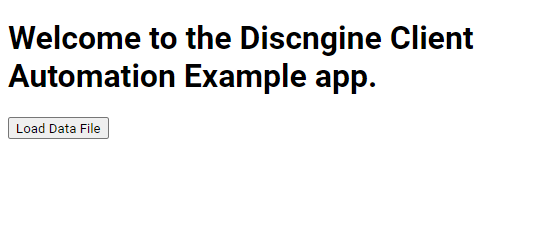
Open your browser and go to http://localhost:3002. You will see our demo app loaded:
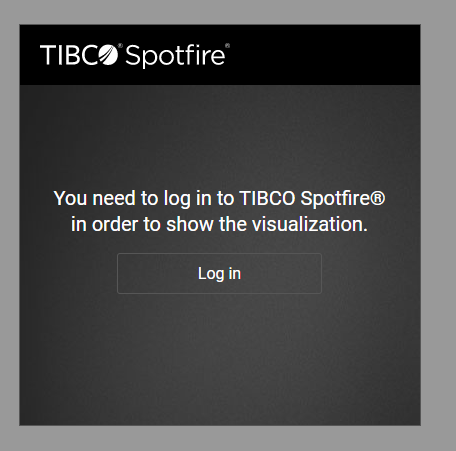
You might also be prompted to log in to your Spotfire server.
Once done, you will see the mashup application with the Spotfire view on the right:
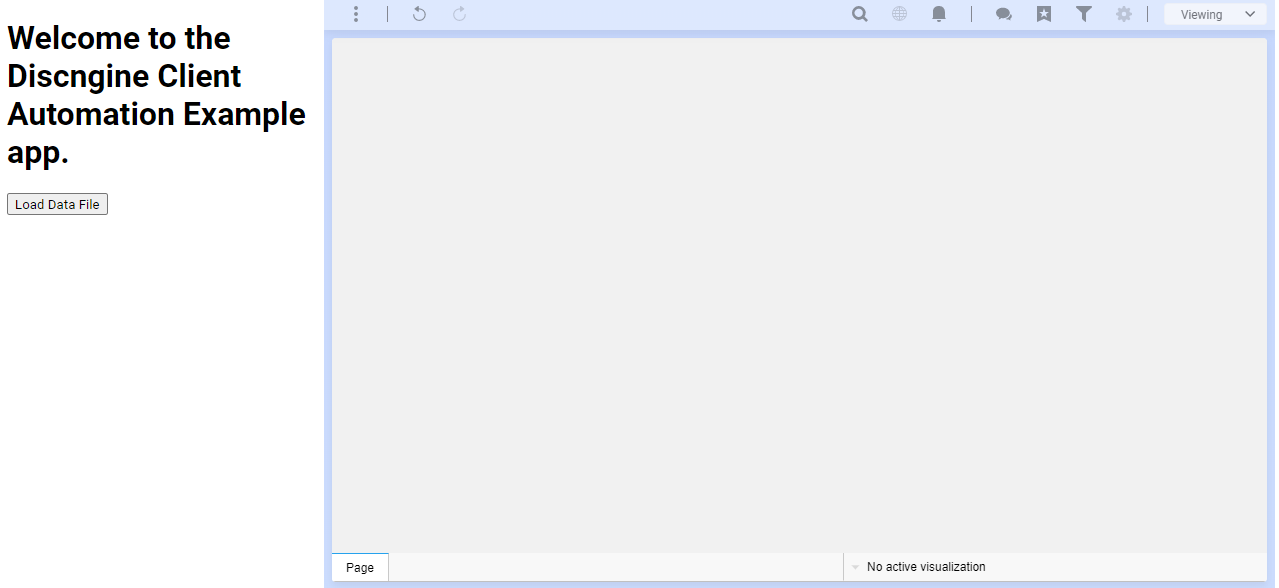
Depending on the settings of your Spotfire instance, you may not have all features available from the Web Player.
## Loading data
### Web Player
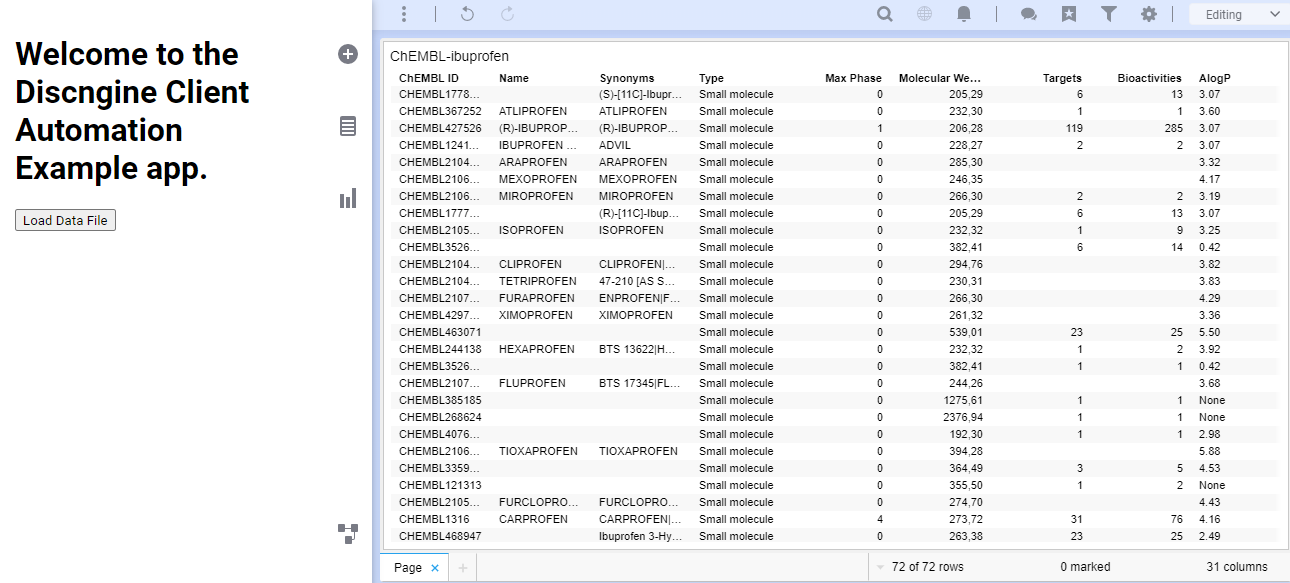
Now that our app is up and running, we can use the interactivity provided by Discngine Connector to load our data. Click on the "Load Data File" button we created earlier to load the example data file into Spotfire. After a few seconds, the csv file will be loaded, and you will end up with ibuprofen data in the table plot.
### Analyst
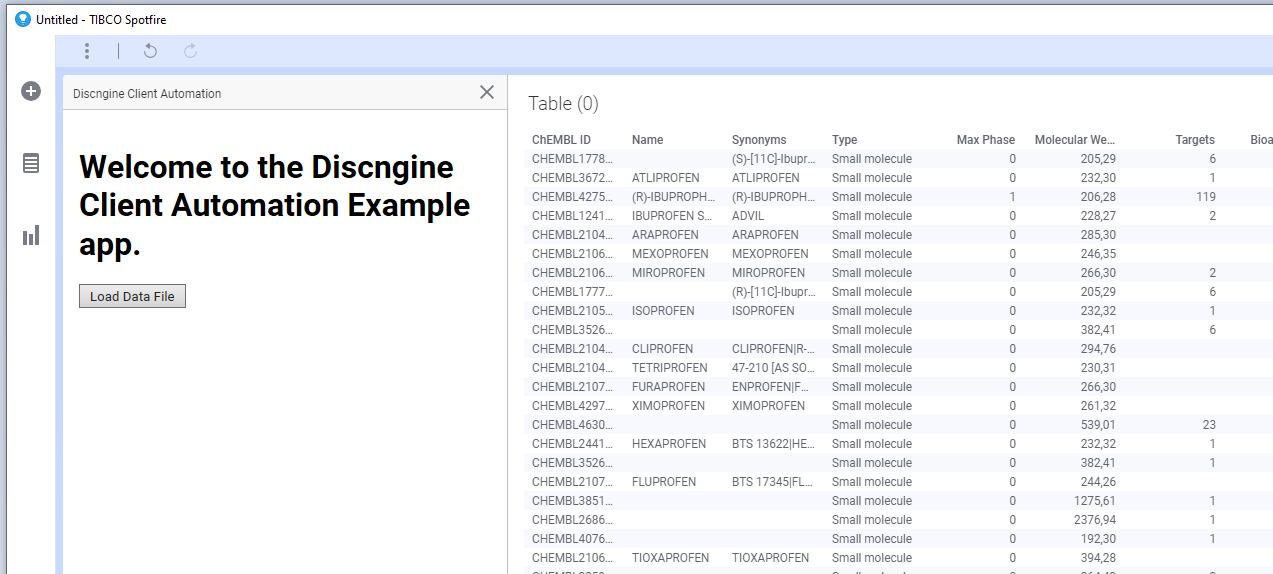
One of the main features of the Discngine Connector JavaScript API is that it works the same in Analyst and Web Player. Thus, if we open an Analyst document and point the Discngine Connector panel to our server (in our case *http://localhost:3002*) we will see the same "Load Data File" button which will do exactly the same.
On the HTML side, the appearance is also similar thanks to the little tweak we did earlier.
## Adding interactivity
Discngine Connector provides ways to load data but also to interact with it. To illustrate this we will add a listener which will display the average values of the marked rows.
### HTML file
The modification in the HTML file is fairly simple. We add a `div` with an id *statistics-output* which we will be able to modify programmatically.
```
// index.html
Example Discngine Connector Application
Welcome to the Discngine Connector Example app.
Select rows to view statistics
```
### JavaScript file
Most of the work has to be done in the JavaScript part. We need to call the `onMarkingChanged` method of the `spotfireDocument` object, to which we will pass our callback.
We could very well add the listener right after instanciating the `spotfireDocument`, but here we will put it after the data table has been loaded. To do so we need to replace the `applyState` method by the `applyStateAsync` method to allow chaining.
```
var spotfireDocument = null;
document.addEventListener('DOMContentLoaded', onDocumentReady);
function onDocumentReady() {
if(SpotfireDocument.isAnalyst()) {
document.getElementById('app-root').style.width = '100%';
var spotfireContainer = document.getElementById('spotfire-container')
spotfireContainer.parentElement.removeChild(spotfireContainer);
}
window
.instanciateSpotfireDocumentAsync(
'https://spotfire.yourcompany.com/spotfire/wp', // Your spotfire server url
'/%EMPTY_DOC_PATH%', // The document you want to open by default in Web Player (required for Web Player),
function(err) {
if (err) {
console.log('Error when loading Discngine Connector API', err);
}
}
).then(function(spotfireDoc) {
spotfireDocument = spotfireDoc; // Save reference for future use
});
document.getElementById('load-data').addEventListener('click', loadDataTable);
}
function loadDataTable() {
if (!spotfireDocument) {
console.warn('Spotfire Document not yet initialized.')
return;
}
spotfireDocument.editor
.loadDataTableFromUrl(
'Demo',
'https://docs.spiceup.ax/assets/ChEMBL-ibuprofen.csv'
)
.addTable()
.applyState();
.applyStateAsync()
.then(function() {
spotfireDocument.onMarkingChanged('Marking', 'Demo', updateStatistics)
});
}
function updateStatistics(selectedRows) {
// Display Results
}
```
Note how we replaced `applyState` by `applyStateAsync` and only after we added the event listener in the `.then` callback.
Now that we have our listener ready, let's write the handler. It will simply create a table containing the average values for each numerical column.
```
var spotfireDocument = null;
document.addEventListener('DOMContentLoaded', onDocumentReady);
function onDocumentReady() {
if(SpotfireDocument.isAnalyst()) {
document.getElementById('app-root').style.width = '100%';
var spotfireContainer = document.getElementById('spotfire-container')
spotfireContainer.parentElement.removeChild(spotfireContainer);
}
window
.instanciateSpotfireDocumentAsync(
'https://spotfire.yourcompany.com/spotfire/wp', // Your spotfire server url
'/%EMPTY_DOC_PATH%', // The document you want to open by default in Web Player (required for Web Player),
function(err) {
if (err) {
console.log('Error when loading Discngine Connector API', err);
}
}
).then(function(spotfireDoc) {
spotfireDocument = spotfireDoc; // Save reference for future use
});
document.getElementById('load-data').addEventListener('click', loadDataTable);
}
function loadDataTable() {
if (!spotfireDocument) {
console.warn('Spotfire Document not yet initialized.')
return;
}
spotfireDocument.editor
.loadDataTableFromUrl(
'Demo',
'https://docs.spiceup.ax/assets/ChEMBL-ibuprofen.csv'
)
.addTable()
.applyState();
.applyStateAsync()
.then(function() {
spotfireDocument.onMarkingChanged('Marking', 'Demo', updateStatistics)
});
}
function updateStatistics(selectedRows) {
// `selectedRows` is an object with keys being the name of columns and values being an array of selected rows values
// Display default message if no rows selected
if (Object.values(selectedRows)[0].length === 0){
document.getElementById('statistics-output').innerHTML = "Select rows to view statistics"
}
var outputContent = '
';
Object.entries(selectedRows).forEach(function(entry) {
var colName = entry[0]; // string, name of column
var selectedValues = entry[1] // Array of values
// Only treat columns which contains numerical values
if (!Number.isNaN(parseFloat(selectedValues[0]))) {
var numValues = 0;
var total = selectedValues.reduce(function(acc, value) {
var numericalValue = parseFloat(value);
if (!Number.isNaN(numericalValue)) {
numValues += 1;
return acc + numericalValue
}
return acc;
}, 0);
outputContent += '
';
document.getElementById('statistics-output').innerHTML = outputContent
}
```
That's it. Now when you load your table, the listener will be registered and the statistics of the rows will be displayed in the application.
## Conclusion
You are now ready to take advantage of Discngine Connector ability to control, read and update your Spotfire document, both in Analyst and Web Player. Our example app is fairly simple, but it showcases how you can load and read data from the Spotfire document.
With all your business knowledge, you will surely find other ways to use these functionalities to drive your analysis further and help your users take full advantage of a modern application coupled with Spotfire.
The [SWAPP](/public/docs/connector-spo-pp-swapp) is an example of what can be achieved. It's a single page application which uses the Discngine Connector JavaScript API and was built with [React](https://reactjs.org). Then again, any modern JavaScript framework like [Svelte](https://svelte.dev/), [Angular](https://angular.io/) or [Vue](https://vuejs.org/) can be used.
Couple that with a python server in [Flask](https://flask.palletsprojects.com/en/1.1.x/) for example and you will be able to use modern Machine Learning algorithm to build powerful tools for your business.
Happy coding!