

# LiveDesign Integration Setup Guide
In this guide, we will walk you through the steps to set up the LiveDesign integration for Ideation.
The main steps are:
- Update Nginx configuration.
- Send us your LiveDesign URL for whitelisting.
Prerequisites
- Access to LiveDesign with admin privileges.
- Access to LiveDesign server and Nginx configuration.
Step 1: Expose Gadget in Nginx
You have two options depending on your installation setup: adding a pod in your infrastructure or
updating your Nginx config directly.
Adding a pod to your HELM Chart
Prerequisites
In order to deploy helm charts to the cluster you need to install and set up the following:
Installation
Before running the installation commands, you will need a values file (called ideation_values.yaml
for example) for each gadget that should look like this:
gadget_type: ideation

global:
  hostname: "<url of your LiveDesign server (e.g. livedesign.example.com)>"

# The details section can all be changed to what you want
details:
  category: Discngine
  name: connector-ideation
  display_name: Discngine Ideation Connector
  endpoint: "/livedesign/gadgets/connector/ideation"

# The following variable is not required if livedesign_hosted is set to true
ideation_url: "<url of your Ideation server (e.g. acme-ideation.discngine.cloud)>"
Then, you can run the following command (change pp_values.yaml to the name of the values file you
created):
helm upgrade --install connector-ideation -n connector -f ideation_values.yaml --create-namespace oci://fra.ocir.io/discngine1/prod/livedesign/connector --version 1.1.0
Updating Nginx configuration directly
To make the gadget accessible, you will need to set up a dedicated route on Nginx. To do so, create
a new configuration file at /etc/nginx/endpoints.d/ideation.conf (or wherever relevant) and fill
it with the following:
location = /livedesign/gadgets/connector/ideation {
    proxy_http_version 1.1;
    proxy_set_header X-Forwarded-For $proxy_add_x_forwarded_for;
    proxy_set_header X-Forwarded-Proto $scheme;
    proxy_pass https://<your-company-prefix>-ideation.discngine.cloud/third-party-wrappers/livedesign/index.html;
    proxy_ssl_server_name on;
    proxy_ssl_name <your-company-prefix>-ideation.discngine.cloud;
    proxy_read_timeout 600;
}

location /livedesign/gadgets/connector/ideation {
    proxy_http_version 1.1;
    proxy_set_header X-Forwarded-For $proxy_add_x_forwarded_for;
    proxy_set_header X-Forwarded-Proto $scheme;
    proxy_pass https://<your-company-prefix>-ideation.discngine.cloud/third-party-wrappers/livedesign/;
    proxy_ssl_server_name on;
    proxy_ssl_name <your-company-prefix>-ideation.discngine.cloud;
    proxy_read_timeout 600;
}
:::(Warning) (IMPORTANT) Replace <your-company-prefix> by the proper prefix for your company. :::
To expose your newly created route, restart the Nginx server, usually with the following command:
sudo systemctl restart nginx
Step 2: Register Gadget in LiveDesign Admin Portal
On the LiveDesign Admin portal, under "Feature Configuration", go to "Properties". In the "Feature
Settings" section, look for "CUSTOM_TOOLS". Edit its value and add a new Object to the JSON:
[
  {
    "categoryName": "Discngine",
    "gadgets": [
      {
        "name": "Ideation",
        "location": "/livedesign/gadgets/connector/ideation/?ideationServerUrl=https%3A%2F%2F<your-company-prefix>-ideation.discngine.cloud"
      },
      ...Other gadgets
    ]
  },
  ...Other categories
]
:::(Warning) (IMPORTANT) Replace <your-company-prefix> by the proper prefix for your company. :::
Save the new setting and refresh the LiveDesign page.
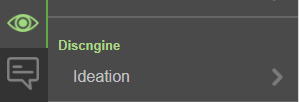
You should now see the "Ideation" item in the "Visualize" menu.
Step 3: Send LiveDesign URL to Discngine
If not already done during the registration phase with Discngine, send the full URL of your
LiveDesign instance to support@discngine.com, i.e. https://livedesign.acme.com. This is required
for us to whitelist your LiveDesign server and allow Ideation to load in it.
:::(Info) (Why the whitelisting?) To prevent various attacks such as Clickjacking, we only allow
Ideation to be loaded in a selected list of parent applications. That is why we need you to provide
us with your LiveDesign server URL.
Until your server has been whitelisted, you will not be able to load Ideation in LiveDesign. :::
Step 4: Log in to Ideation
Once you have received confirmation that your Ideation server has correctly been whitelisted, you
will be able to load Ideation through the "Visualize" > "Ideation" item. Log in to Ideation as usual
and start importing a LiveReport to create SAR Slides from it.
Troubleshooting
/login in the Ideation server URL
When accessing Ideation at https://acme-ideation.discngine.cloud, you will be automatically
redirected to the login page https://acme-ideation.discngine.cloud/login if you weren't connected.
Be careful when copying the URL to fill your config files! You must NOT include the trailing
/login in the config.