When uploading a dataset, you can select a subset of properties and configure each of them. The aim of this pre-configuration step is to define what will be shown by default in every new SAR Slides created for this dataset.
We review in detail what can be done, why it can be useful to do it at the dataset import level, and provide detailed explanation of the available configurations.
Properties of interest
Upon uploading a dataset, you must define at least one, and optionally several properties using the Default Visible Properties picker (Add property…).
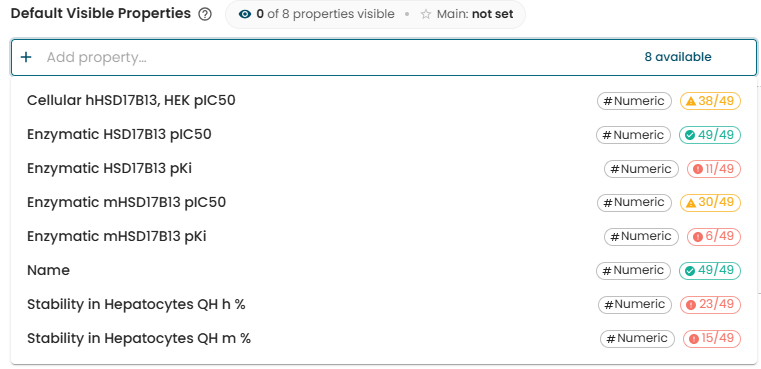
These properties are typically the main endpoints of interest for your current research project that you typically look at when assessing your target compound profile: primary activities, ADMET properties, ...
When selecting the first (mandatory) one, it will be flagged as being the main endpoint. This might typically be a primary IC50 activity, or any other primary endpoint of interest regarding your current compound design objectives. The property flagged as such will be used by default to sort fragments in SAR Galleries.
All other properties that will be optionally added during this step will also be loaded by default and available in SAR Slides, so you don't have to load them again every time you create a new report.
It's interesting to have that pre-configuration step aiming at a particular state that would be relevant to your current objective, for example:
By default, every new MMP SAR Slide created will show the best transformations regarding our main pIC50 endpoint, highlight transformations that have a significant effect in green (good change) or red (bad change), and show additional endpoints that are of interest for this dataset.
Although optional, it's advised to take time to configure them, again, for the sake of not re-doing it for every new SAR Slide.
Individual Property configuration
These are the current attributes that you can define for every property added upon importing a new dataset. Let's review each of them:

-
Property Name & Type: Name of the property as defined in your dataset source. Click the pencil icon to give it a display name or a description. Below are the type of the property as automatically detected (which you can change) and a chip showing how many structures have a value for it.
-
Direction: Are you trying to optimize this property towards high or low values? This information is currently used to (1) order transformations to show the best ones by default, (2) determine whether an activity change between two compounds is good or bad, which, together with the threshold (see below), will translate into colored values reflecting the effect of a given transformation on the endpoint.
-
Threshold Type: Thresholds are used to identify significant activity change between two molecules. Significant changes will be colored in green if the change is good, or red if the change is bad, depending on the directionality you defined.
Two types of thresholds can be used:- Absolute: Use absolute value of the difference between activities.
- Fold: Use ratio between the other compound value and the reference activity value. Suited for non-linear activity scales, typically, IC50s. A fold threshold applies in both directions: with a fold of 10, values at least 10 times higher or at most 10 times lower than the reference are significant.
-
Change Threshold: Value used to determine whether a change between two property values is significant or not. Leave it empty to disable color-coding for this property. To use different thresholds for decreases and increases, enter them as
{decrease};{increase}(e.g.10;20). -
Main: Defines the main property, or primary endpoint. The first property you add is selected automatically; use the radio button to pick another one. This property will be used by default to sort fragments in SAR Galleries, which translates into showing the "best" transformations first.
You have a pIC50 evaluating inhibition effect of your compound on your primary target. You would typically define the direction as Higher, the threshold type as "Absolute" and the change threshold = 1 (which corresponds to a 10-fold change), and toggle the Main radio button for this property.
Check out what would happen by taking compound 27 (pIC50 = 6.93) as a reference compound:
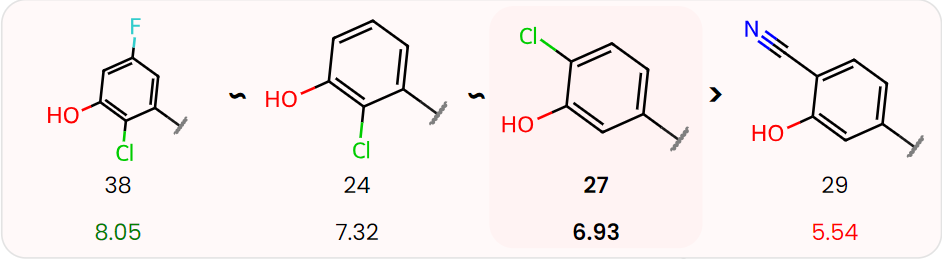
We defined that higher values are good, with a threshold of 1. Since compound 38 has a pIC50 of 8.05, and compound 27 (reference) has a pIC50 of 6.93, the difference between these two is +1.12, which is greater than or equal to the threshold. The value for compound 38 ends up being colored in green: this is a good, significant (according to the threshold) change.
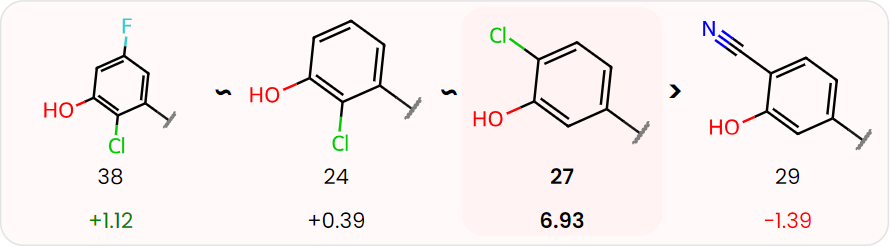
Note that instead of displaying pIC50 values, we can display activity differences by turning on the Show activity diff. switch in the Display settings (MMP only), which makes it easier to interpret the default coloring:
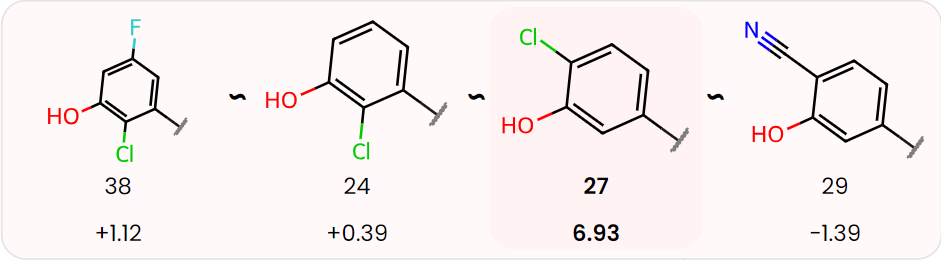
If you edit the threshold value and put 2 instead, you would end up with no coloring in this example, since there is no absolute activity change greater than or equal to 2:
Note that all this information can then be changed once you are in the SAR Slides. Defining some relevant default configuration will however save you time, since once done, it will be applied to every new SAR Report created on the dataset.