
How to Apply Settings Everywhere in a SAR Report
This guide shows you how to apply one or several settings to all SAR Slides / Galleries in a SAR Report.
For an explanation on settings levels and hierarchy, see SAR Report Settings & Levels.
Pre-requisite
A fresh new SAR Report with at least two SAR Slides. Ideally, you have not fine-tuned any setting yet.
You might want to put two slides next to each other to easily see the scope of the changes we'll make, by drag and dropping a slide (through its tab header).
From a SAR Slide or Gallery
We'll start by configuring a single slide.
-
Open your SAR Report. By default, you should have the settings panel opened on the right hand side of the screen. It should point to one of the SAR Slides of your report.
-
Switch to the Display tab and turn on the Grayscale mode and turn off the Display Endpoint Labels:
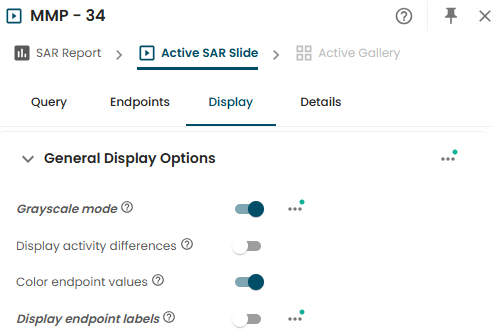
You will notice the green dot menu appearing next to every item you changed, as well as at the General Display Options section level. This indicates that those settings were changed compared to what was defined for the entire report.
Since you were at the SAR Slide level, these settings were applied only to your active SAR Slide. Let's apply the Grayscale mode everywhere:
- Click on the menu next to the Grayscale mode
- Select Apply to SAR Report
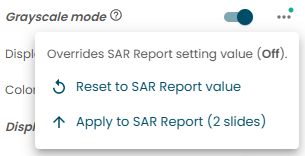
All SAR Slides in your report now have this setting.
From the Report level
Now switch the level from Active SAR Slide to SAR Report:
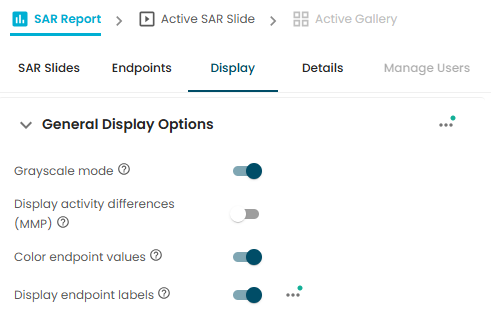
You will notice two things:
- There is no green dot menu next to the Grayscale mode. This is because we applied the settings from the Slide to the whole Report, so there is no longer any override; this is now the default value.
- The green dot menu appears next to the Display Endpoint labels, because we changed the value for a specific slide.
Let's now go back to our initial state:
- Turn off the Grayscale mode -> All your SAR Slides should now be back to colorful.
- Click on the menu next to the Display Endpoint Labels and select Apply Everywhere:
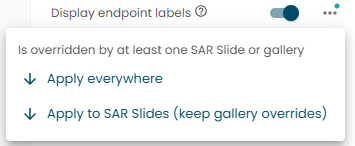
We are now back to our initial state.
The override menu is available for sections as well. It makes it possible to apply several settings in one shot.
