SAR Report Settings Levels
A SAR report's appearance and behavior are controlled on three nested levels. This makes it possible to automatically or manually apply a given setting everywhere, while keeping the possibility to override a top level setting in order to fine tune a specific slide or gallery.
Understanding how they cascade is the key to configuring a report efficiently: set a default once at the top and let every slide and gallery inherit it, then override only where you need something different.
The Three Levels
| Level | Scope | What it controls | |
|---|---|---|---|
| SAR Report | The whole report | The defaults inherited by every slide | |
| Active SAR Slide | One slide | Overrides the report defaults for the selected slide | |
| Active Gallery | One gallery | Overrides the report and slide settings for a single gallery |
Settings are available in the right panel, accessible by clicking on the cog icon available for each slide or at the top right corner of a SAR Report page. The level itself is shown at the top of the settings panel under the currently active level name (see below).
How Settings Cascade
Settings flow downward: SAR Report → Active SAR Slide → Active Gallery.
SAR Report (defaults for every slide)
├── Slide 1
│   ├── Gallery 1   ← can override the slide
│   └── Gallery 2
├── Slide 2
└── Slide 3
- A slide that has not been customized inherits the report defaults.
- When you change a setting on a slide, that slide now overrides the report
for that one setting — other slides are unaffected. In such case, you'll notice a menu appearing on the right hand side of the setting item (and section, when applicable) showing that a change have been made compared to a reference. - A gallery can in turn override its slide for an even narrower scope.
This is why changing a value at the SAR Report level is the fastest way to restyle an entire report: every slide and gallery that haven't been customized follow along automatically.
Navigating Between Levels
A colored breadcrumb sits directly under the panel title and acts as the level
switcher: SAR Report › Active SAR Slide › Active Gallery. The current level
is filled; the others are clickable.
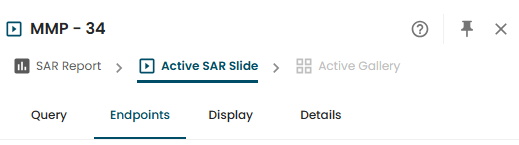
- SAR Report means you are configuring the full report (all slides / galleries).
- Active SAR Slide means you are configuring the currently selected slide.
- Active Gallery means you are configuring an individual gallery.
Each level offers the settings tabs relevant to its scope:
| Level | Tabs |
|---|---|
| SAR Report | SAR Slides · Endpoints · Display · Details · Manage Users |
| Active SAR Slide | Query · Endpoints · Display · Details |
| Active Gallery | Query · Endpoints · Display · Details |
Overrides
When a child level setting diverges from its parent value, the override is shown in two complementary ways.
Settings overrides
A green dot menu appears next to the modified setting. For example, if I have changed the endpoint of a specific SAR Slide compared to what is defined at the report level, the Main Endpoint setting will appear as follows:
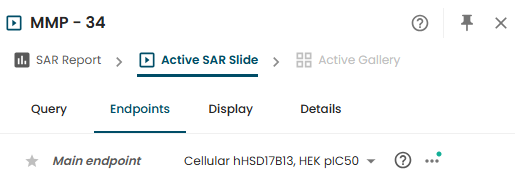
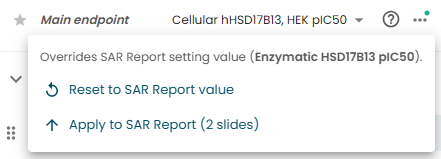
In such case, clicking on the menu makes it possible to reset the value to its parent, or apply it everywhere:
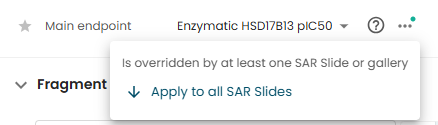
Conversely, if a child level overrides a specific settings, the same menu will appear next to the setting in the parent's menu. If we keep the previous example and switch to the Report level, we would see the following
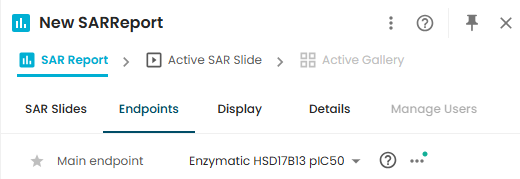
Clicking on the menu would make it possible to apply the setting to all children, hence clearing out their overriden values: