In this tutorial you will learn how to create a new LiveReport with the Connector with data coming from several data sources. It is divided into two steps for simplification.
Topics covered:
Create LiveReportcomponent- Basic reporting and error management using
HTML Report WriterandDisplay Errorcomponents - Registration of protocol in LiveDesign
- Change of parameters for a registered protocol in LiveDesign
Single data source
Create protocol in Pipeline Pilot
-
Create the new protocol
- Open the Pipeline Pilot client.
- Create a new protocol.
- Save it somewhere in
Protocolsas "Create a LiveReport". Your personal space is not accessible from the gadget.
-
Get data from an example data source
- Add the
MAO Readercomponent from the BIOVIA Chemistry collection to your protocol. - As this is a tutorial, it is recommended to set the
Maximumparameter to a small value like 100 to avoid creating too many compounds in LiveDesign and wait too much.
- Add the
-
Add extra calculation on your input records
- Add the
Identify Saltscomponent from the BIOVIA Chemistry collection to your protocol.
- Add the
-
Push the records into a new LiveReport
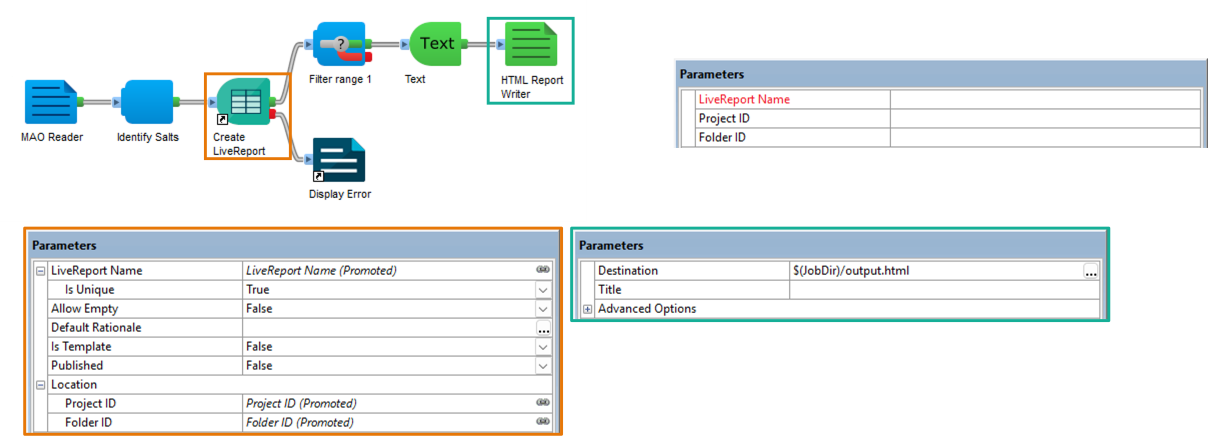
- Add the
Create LiveReportcomponent to your protocol. - Promote the
LiveReport Nameparameter to the protocol level and uncheck "Promote entire group". - On the promoted
LiveReport Nameparameter, simplify the help text to "Name of the new LiveReport.". - Promote the
Project IDparameter to the protocol level. - Promote the
Folder IDparameter to the protocol level. - Set the
LiveReport Name Is Uniqueparameter to True.
- Add the
-
Add reporting information
- Add a
Range Filtercomponent from the BIOVIA Generic collection to your protocol and set theListparameter to 1 to keep only one record. - Add a
Textcomponent from the BIOVIA Reporting collection to your protocol and set theTextparameter to'The LiveReport "$(LiveReport Name)" has been created with ID '.%'LiveReport ID'.' in project $(Project ID).'. - Add a
HTML Report Writercomponent from the BIOVIA Reporting collection to your protocol and set theDestinationparameter to$(JobDir)/output.html. - Pipe a
Display Errorcomponent to the fail port of theCreate LiveReportcomponent.
- Add a
Register protocol in LiveDesign
-
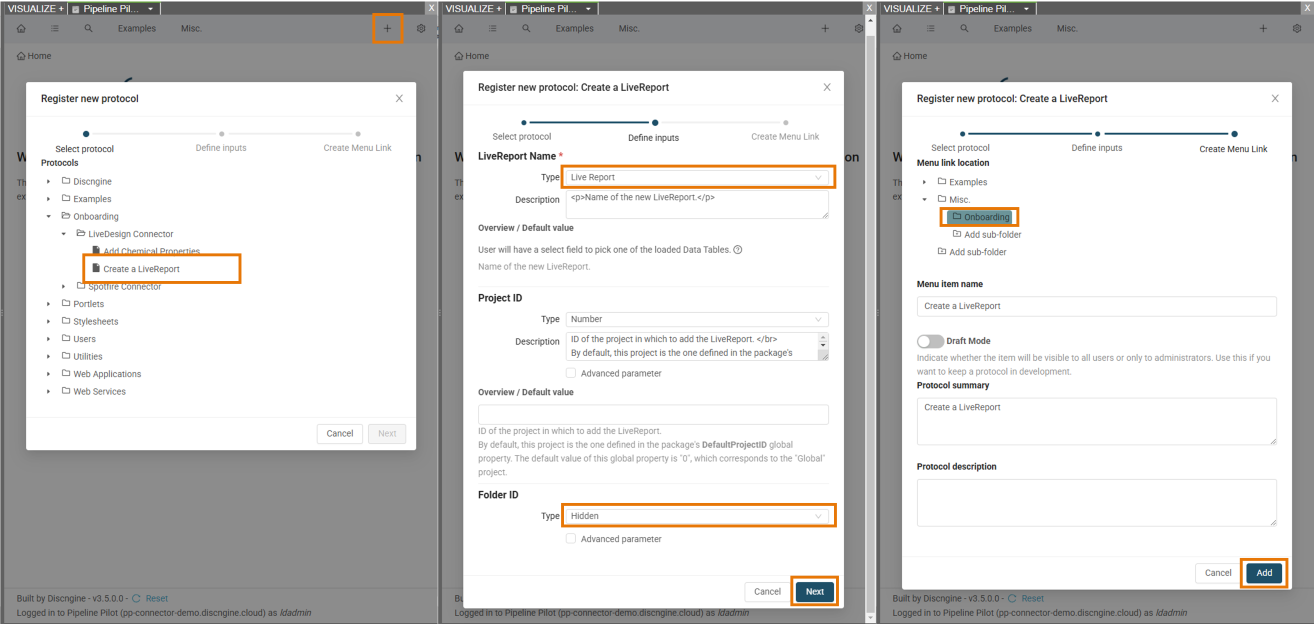
Open the registration menu
- Open LiveDesign and the gadget.
- Click on the icon in the gadget menu. You can see it only if you are gadget administrator.
-
Select the protocol
- Browse the tree of Pipeline Pilot protocols.
- Select the previously created "Create a LiveReport" protocol.
-
Define the inputs
- Change the type of the
LiveReport Nameparameter from LiveReport to Text.- By default the gadget applies the type LiveReport to a parameter of Pipeline Pilot type StringType containing "LiveReport" in its name. This type allows the user to select an existing LiveReport and to send its identifier to the protocol. Here it is not the appropriate type as the LiveReport does not exist. We want its future name and not its current identifier.
- Change the type of the
Folder IDparameter from Number to Hidden (this will be used later in the Use REST API Resource tutorial). - Click on "Next".
- Change the type of the
-
Create the menu item
- Select the location of the protocol in the menu. If needed you can create another folder or subfolder.
- If needed set the draft mode to hide the protocol from non-administrator users.
- Click on "Add".
Test protocol in LiveDesign
- Select the newly registered protocol
- Select the "Create a LiveReport" protocol in the gadget menu. If it has been saved in draft mode, the name of the protocol will be in italic and an icon will be in front of it.
- Fill the form
- Set the name of the LiveReport that you want to create in the field
LiveReport Name. - Set the identifier of the project in which you want to create your LiveReport in the
Project IDfield. - Click on "Submit".
- Set the name of the LiveReport that you want to create in the field
- Check the results
- In the gadget, a sentence should remind the project in which the LiveReport has been created, its name and its identifier.
- A new LiveReport containing MAO data should be available in LiveDesign.
Several data sources
Edit protocol in Pipeline Pilot
-
Get data from another example data source
- Pipe the
LogPData Readercomponent from the BIOVIA Chemistry collection to the input port of theIdentify Saltscomponent. - As this is a tutorial, it is recommended to set the
Maximumparameter to a small value like 100 to avoid creating too many compounds in LiveDesign and wait too much.
- Pipe the
-
Add filters to the data sources using protocol parameters
- Create two parameters
Load MAO DataandLoad LogP Dataof type BoolType at the protocol level. - Add input ports to
MAO ReaderandLogPData Readercomponents and pipeCustom Filtercomponents with their respective expressions@'Load MAO Data'and@'Load LogP Data'.
- Create two parameters
-
Add protocol help text
- Set the protocol help text to something relevant like "Optionally loads MAO and/or LogP data in a new LiveReport of a given project."

Re-register protocol in LiveDesign
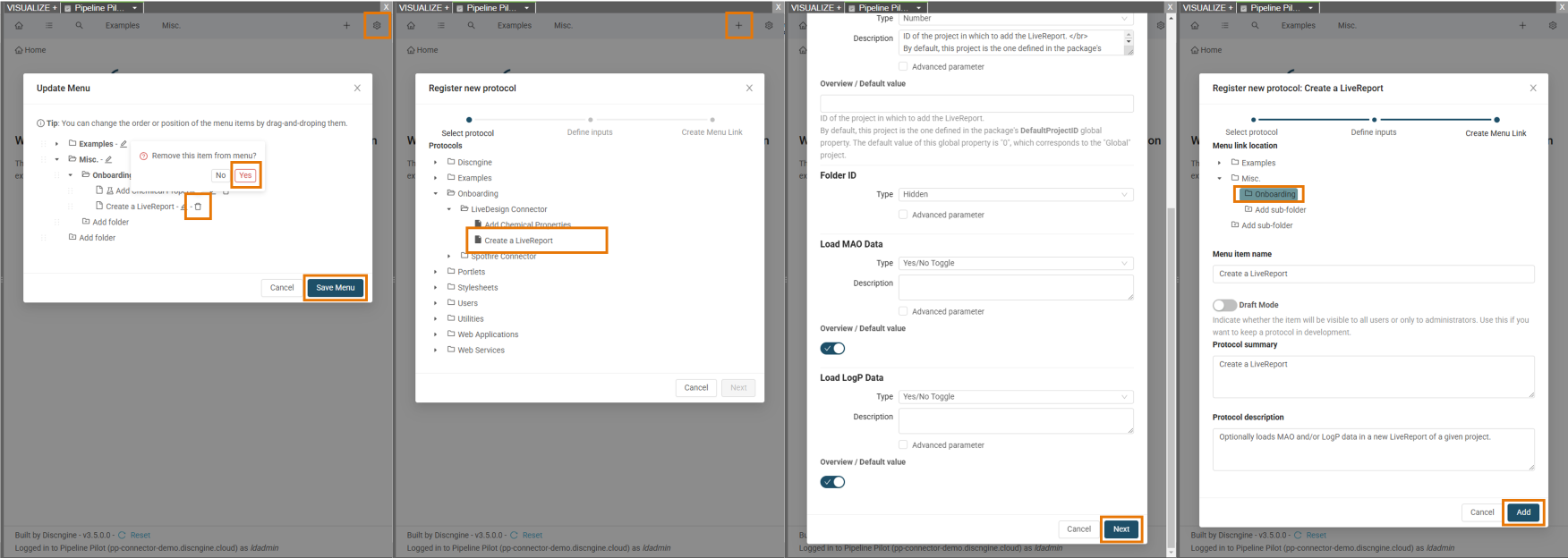
Once a protocol is registered in the gadget, if you want to change the input parameters, the protocol must be deleted from the gadget and registered again.
-
Delete previously registered protocol
- Open LiveDesign and the gadget.
- Click on the icon in the gadget menu to manage the registered protocols.
- Look for the previously registered "Create a LiveReport" protocol and click on the icon to delete it.
- Click on "Save Menu".
-
Register again the protocol as described in the Register protocol in LiveDesign section.
- Check that the type of
Load MAO DataandLoad LogP Datainput parameters is Yes/No Toggle.
- Check that the type of