

How to Audit Access in Your Project
The Direct Access view in project settings lets you see all per-object access grants across your project — every user who has been given a direct role on a specific dataset or SAR report.
Prerequisites
- You must be a project Owner (Admin).
- Some direct access rights have been granted to users in the project (otherwise the menu will not appear).
Open the Direct Access View
- Open your project, and on the top right corner of the page, click on the Users icon to open the Project settings panel, in the user management section

- Click Review Direct Access.
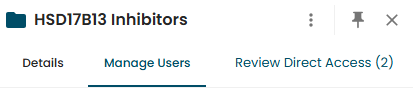
The Review Direct Access button is only displayed if:
- There are direct access grants in the project to display, AND
- You are a project Owner (Admin)
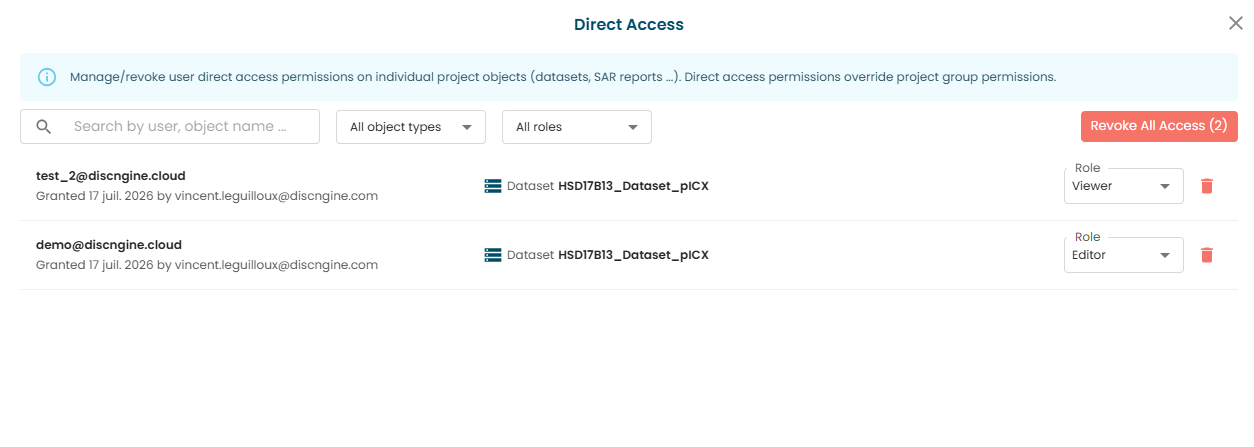
The view shows a list of all direct access granted in the project:
Revoke Individual Access
- Find the grant you want to revoke.
- Click the revoke icon on that row.
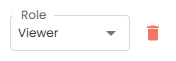
The user loses their direct access to that specific object.
Note that they may still have access if the user was already part of the project or was added to it after they got direct access. In such a case, if you need to completely remove the access of the user to a specific object, you would instead either switch its role to Deny Access, or remove the user from the project.
Bulk Revoke
Use the filters at the top to narrow down the view, in case you want to bulk revoke access to an individual or to a specific object. The following filters are available:
- Search: Filter by user email or object name.
- Object Type: Show only Datasets, only SAR Reports, or all.
- Role: Show only specific roles.
- Apply filters to narrow down to the grants you want to remove.
- Click Revoke all filtered access.
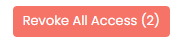
Double-check your filters before confirming, since there is no quick way to revert.