

Getting Started with Projects
This tutorial walks you through creating your first project, understanding project types, and organizing your data within a project.
Prerequisites
- You are logged into Ideation.
- You have a dataset file (SDF or CSV) ready to import.
Before we start: your Personal Project
When you log in for the first time, Ideation automatically creates a
personal project for you called My Workspace. This is your private
project:
- It is always private — only you can see it.
- It cannot be deleted or made public.
- It is a good place to store datasets you are working on individually before
sharing them with your team.
You can find it on the Home page, marked with a blue User badge.
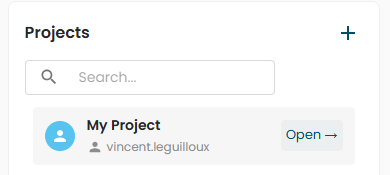
In the following, we'll focus on creating new projects that would typically be used to share information between groups of users.
Create a New Project
To create a project for team collaboration:
- Open the New Project form — from the Home in the Project section click New Project, or in the left navigation bar click New and choose New Project.
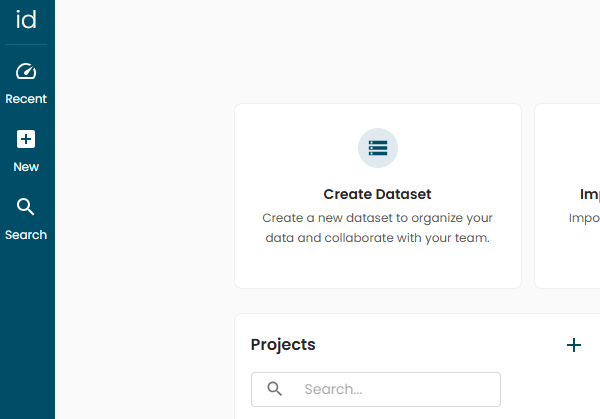
- Fill in the form:
- Project Name: A human-readable label (e.g., "Kinase Inhibitors Q3").
- Project Code: A short unique identifier (e.g.,
KINASE_Q3). - Description: Optional context about the project's purpose.
- Public / Private toggle: Set to Private to restrict access to explicitly added members, or Public to make the project visible to all users.
- Click Create Project.
If you are unsure about visibility, start with a private project. You can always make it public later from the project settings.
If your organization uses official codes for Projects, we recommend using the same codes in Ideation to make it easier for users to find and identify the Projects.
To avoid conflicts with Project Code unicity, please make sure organization Projects are created and owned by the appropriate users, and that project's users are added as member so they can see it.
If you don't use official project codes, you can leave the default suggested value.
After creating the project, you land on the Project Page, which currently shows:
- The project description and details at the top.
- Create buttons to add new datasets and SAR reports.
- An item browser listing the datasets and SAR reports in the project that you
have access to.
Project configuration and permissions are available to Admins from the Settings drawer, opened with the cog icon in the top-right action bar (tabs Details and Manage Users).
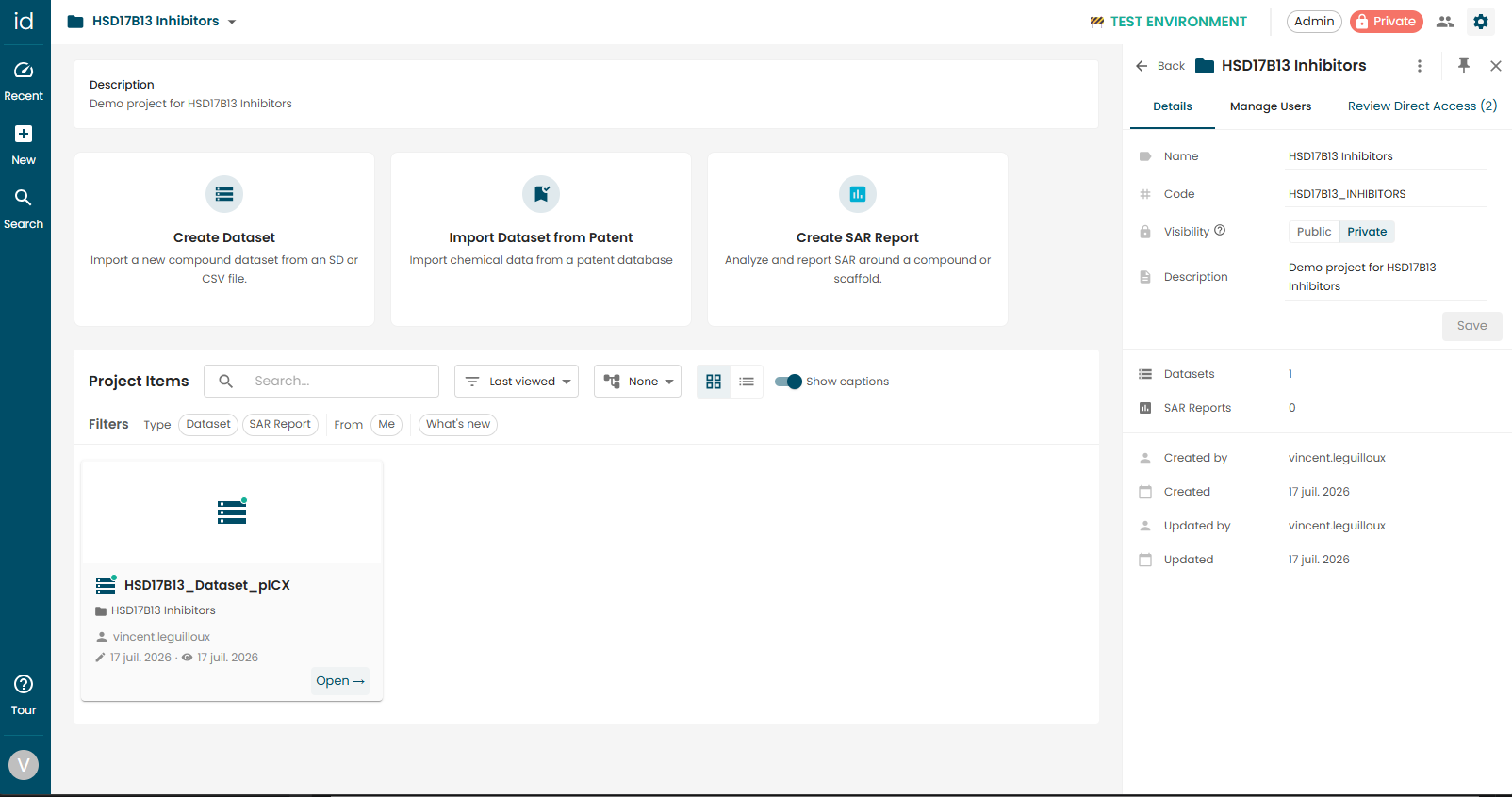
Edit Project Details
- Open the project and go to the Settings panel (cog icon in top right action bar of the project page), on the Details tab.
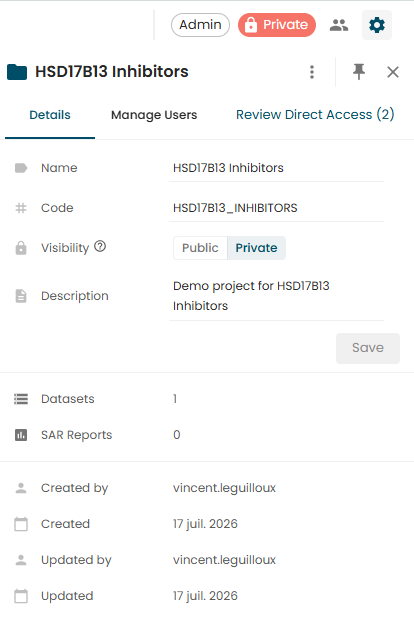
- Update the Name or Description.
- Click Save.
Add a user to the project
- Open your project, and on the top right corner of the page, click on the Users icon to open the Project settings panel, in the user management section

- You see the three groups: Owners, Members, and Visitors.
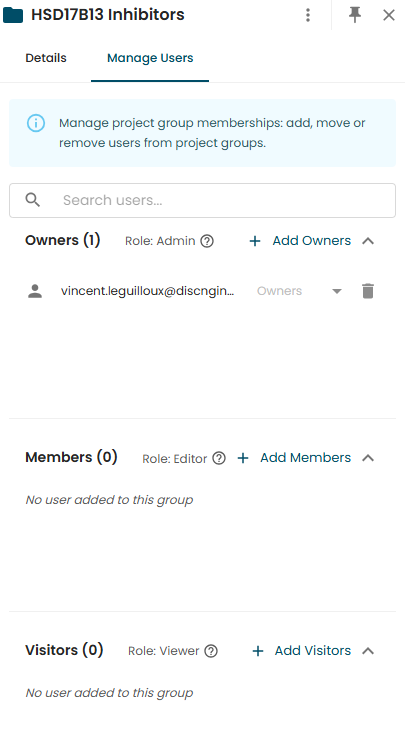
- Click Add Members on the Members group.
- In the dialog, search for your colleagues by email address.
- Select the users you want to add, then click Add as Members.
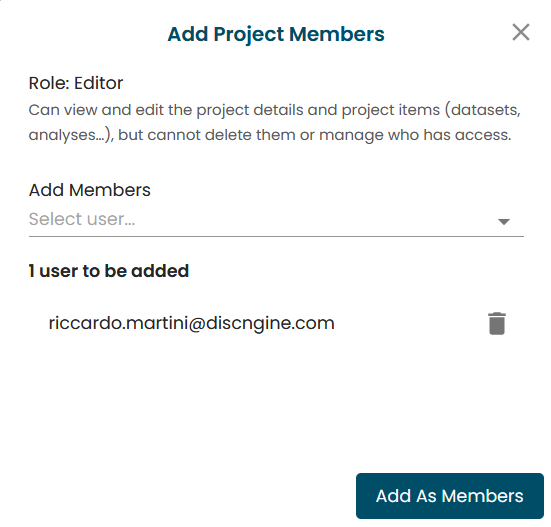
Your colleagues now have Editor access to the project and all its datasets and SAR reports. They can create, view, and edit data — but cannot delete or manage permissions.
What's next
Once you are all set, you can create content within the project. See the following tutorials for creating content:
To further understand projects and access control models: