

Sharing Your Work with Your Team
This tutorial walks you through the two main ways to share data in Ideation:
adding members to a project, and sharing individual datasets or SAR reports
with specific colleagues.
Prerequisites
- You have a private project with at least one dataset.
- You know the email addresses of the colleagues you want to share with.
- Your organization has sharing enabled and you have the permissions to do so.
Scenario
You are working on a private project called "HSD17B13 Inhibitors". You want
to:
- Give your team access to the project.
- Share one specific dataset with an external collaborator who should not see
the rest of the project.
Part 1: Add Team Members to Your Project
Adding users to a project group gives them access to the project and all objects (datasets, SAR Reports) within it.
- Open your project, and on the top right corner of the page, click on the Users icon to open the Project settings panel, in the user management section

- You see the three groups: Owners, Members, and Visitors.
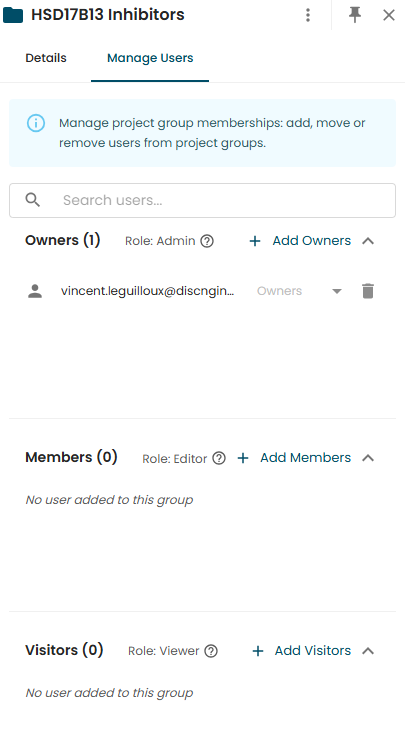
- Click Add Members on the Members group.
- In the dialog, search for your colleagues by email address.
- Select the users you want to add, then click Add as Members.
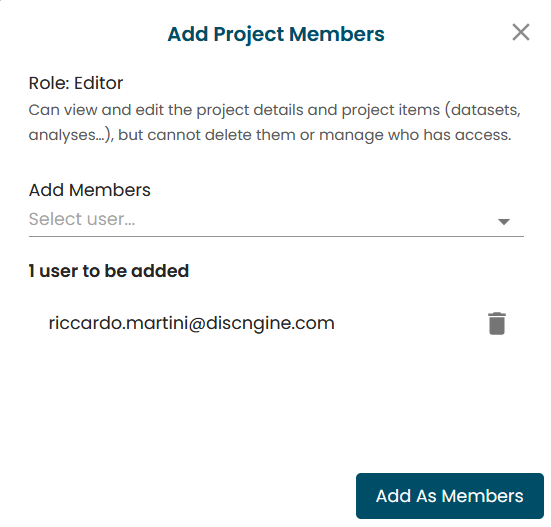
Your colleagues now have Editor access to the project and all its datasets and SAR reports. They can create, view, and edit data — but cannot delete or manage permissions.
Users added to a project will receive an email.
Move a User Between Groups
If you need to change a member's access level:
- Find the user in their current group (you can use the Search Users field on the top).
- Use the group drop-down next to their name.
- Select the target group (e.g., move from Members to Owners).
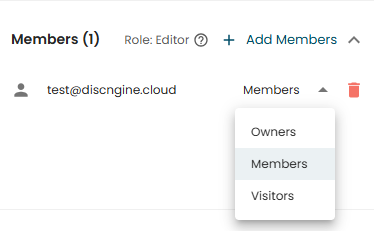
The user is automatically removed from their previous group — a user can only
belong to one project group at a time.
Part 2: Share a Dataset with Someone Outside the Project
Sometimes you need to share a single dataset with someone who should not have
access to the entire project. This is common when:
- You want to share a dataset from your personal project.
- You want to share one dataset from a private project without exposing the
other datasets.
Here is how:
- Open the dataset.
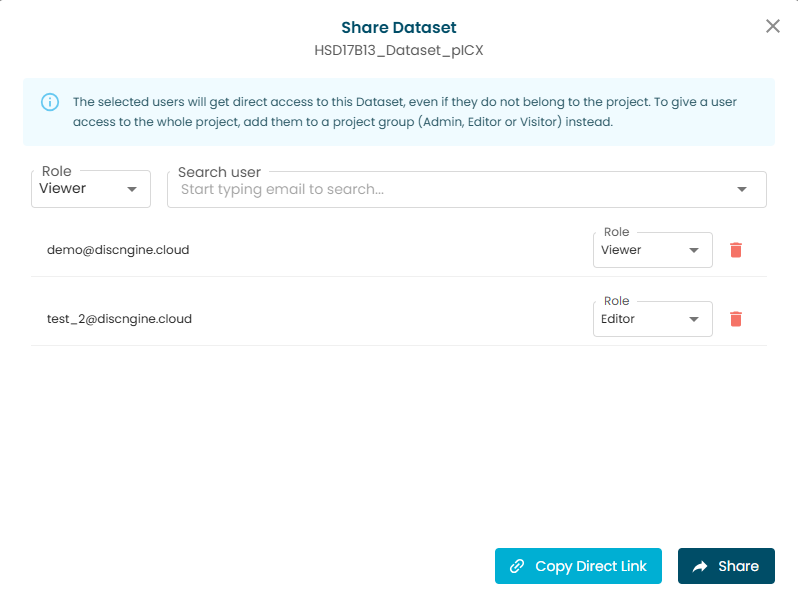
- Click the Share icon in the top-right action bar.

- In the Share dialog:
- Select a role for the recipient (Viewer, Editor, or Admin).
- Search for the user by email and select them.
- Click Share.
The recipient receives an email notification with a direct link to the
dataset. They can access this specific dataset, but they cannot see the
project it belongs to or any other datasets in that project.
You can also Copy direct link from the Share dialog to send the link through other channels.
Sharing direct access to a Dataset, even with a higher privileged role like Editor or Admin, does not give Project permissions. It means that the user will not be able to create and save new work objects (like a new SAR Slide) in the Project. They'll only be able to interact with the granted Dataset itself, and draft SAR Slides locally in their Active Session, but they will not be able to save them in the Project.
If a user needs to actively work in the Project, please add them as a Member.
What the Recipient Sees
The recipient can open the dataset and work with it according to their role. However, since they do not have project-level access:
- The project is shown but not clickable ("No access to the project").
- They cannot browse other datasets or SAR reports in the project.
- They only see the specific objects that have been shared with them directly.
Sharing a SAR Report
When you share a SAR report, the recipient also needs access to the underlying
dataset. Ideation handles this automatically — when you share a SAR report, the
Share dialog shows a notice that access to the dataset will also be granted (view only).
What You Learned
- Project group membership gives broad access to everything in the project.
- Direct sharing gives targeted access to a single dataset or SAR report.
- Users with direct access to an object but no project access can explore that
object, but cannot see the project or its other contents. - Sharing a SAR report automatically grants access to its dataset.
- Recipients receive an email notification with a direct link.
Next Steps
- How to Audit Access in Your Project — Review all direct access grants in your project.