
The SWAPP Menu

Home page customization
In order to have content on the Home Page more relevant to your company or even the user, you can customize the Home Page of the SWAPP.
To do so, you have two options:
- Change the content of the static HTML fragment located in [PPS]/apps/discngine/tibcoconn/swapp/homepage_body.html
- Create a Pipeline Pilot protocol which generates an HTML fragment, then set this protocol path as
SWAPPHomePageProtocolin the global variables. See the tutorial Create a Home Page protocol.
Protocol forms
The protocol forms can be reached from the menu folders or using the search functionality.
Fill the form as desired and launch the protocol from this form by clicking on the "Submit" button. See SWAPP - Running example protocols tutorial.
Protocol Shortcut Link
When running the protocol, you may have noticed a section under the submit button called "Shortcut Link". From there you can generate a link to the current protocol that will allow you to reload the form with the exact same parameters you have when clicking the "Get Shortcut Link" button. This can be useful if you have a protocol that you always want to use with the same parameters, or if you want to share the filled form with a colleague.
Furthermore, ticking the "Auto Submit" option will trigger the submit of the form as soon as the page loads from the link.
Jobs list
When a protocol is triggered, it is automatically added to the list of jobs. The list can be accessed from the menu by clicking the list button:

Here you can see all the jobs that you have launched and those which are still running. Each job status is indicated next to it, whether it is running, has run successfully or failed. Click on a job to expand its details like the status, the parameters that were used to run it and the output files.
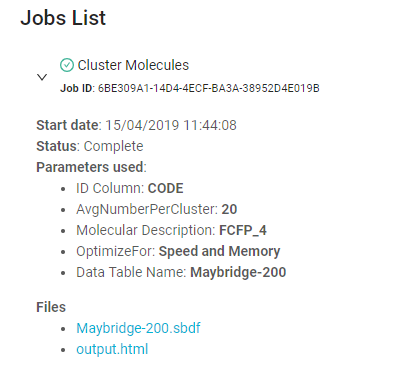
The output files are those that have been generated by the protocol. As you can see, we have a Maybridge-200.sbdf file (the data table updated with the new columns) and an output.html file. This HTML file is the one that is used to display the molecules we saw earlier. It also contains the instructions generated by the Connector components (add the new columns and the bar chart) which have been translated to JavaScript (we will get back to that later). You can see the result again by clicking the "Load Results" button.
Note that you can also reopen the form that was used to run the protocol with the exact same parameters. This can prove handy when you have a large number of parameters and want to rerun the protocol while only changing one of them.
Settings
Managing protocols
The ability to add, update and remove protocols is defined by the user's permissions in Pipeline Pilot (see SWAPP permissions).
The SWAPP_ADD permission will allow a user to add a new protocol. SWAPP_EDIT and SWAPP_DELETE allow a user to edit or delete protocols already registered in the SWAPP.
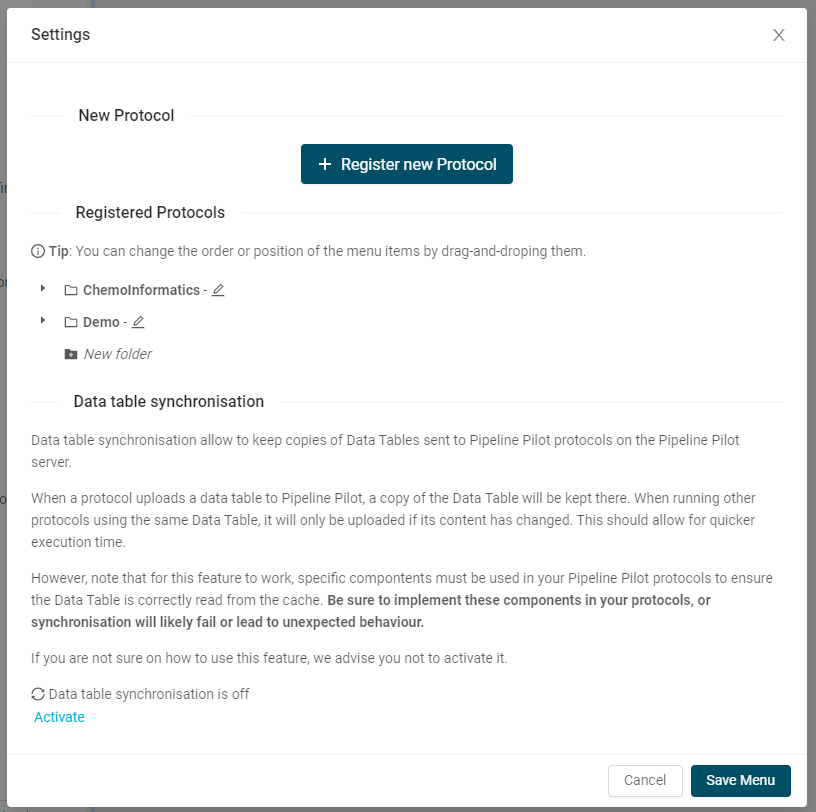
All these actions can be performed from the Settings menu.

Real Time Synchronization
The SWAPP embeds the Real Time Synchronization API of the Connector. The Real Time Synchronization ensures that your data table are kept in sync between Spotfire and Pipeline Pilot and are only uploaded when necessary. You can opt in/out by clicking on the toggle button in the settings menu.
Known limitation:
When the Real Time Synchronization is activated, the "Mark rows only" option will not be taken into account. This limitation will be addressed quickly.
Registering a new protocol
See the corresponding tutorial.
Advanced options
Some fields, like the TIBCO Spotfire Column one, have extra options. You can find their explanations in the List of inputs page.
For the protocol two options are available:
- Automatically Add GUID column: this option will enforce the creation of a column called TSC_ROWID which will contain a unique ID for each row. A unique column is required when running a protocol to merge the resulting data table with the input one. Furthermore, having a unique ID per row for each data table ensures you don't have duplicates. This will be particularly useful if users trigger long running jobs when they can lose track of which input data table was used. Note: this option will be set by default if the registered protocol contains a TIBCO Spotfire Column field with the same parameter active.
- Hide item from general users: when a protocol is being developed, you may not have the correct settings right away. Ticking this option will make the protocol only visible to users with the Add, Edit or Delete permission. In the menu, they will exhibit a flask icon to indicate they are under development.